Sending us video as a Client
If you need to send us video, your account manager will make sure you're set up on our system to do so. Here are the instructions you'll need to do it.
Instructions
Step 1. Login to Asset TV as normal.
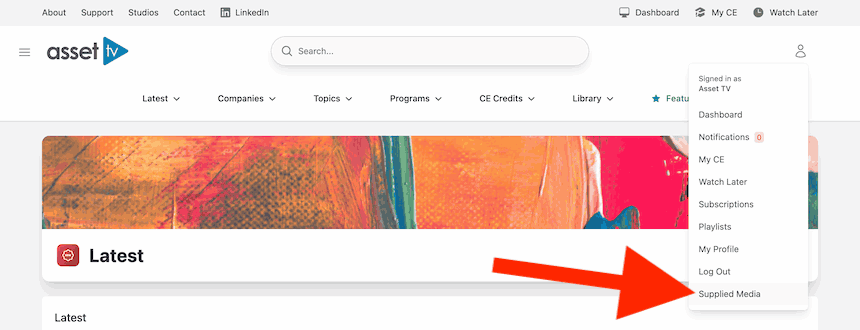
Step 2. Open the user menu in the top right and click Supplied Media.
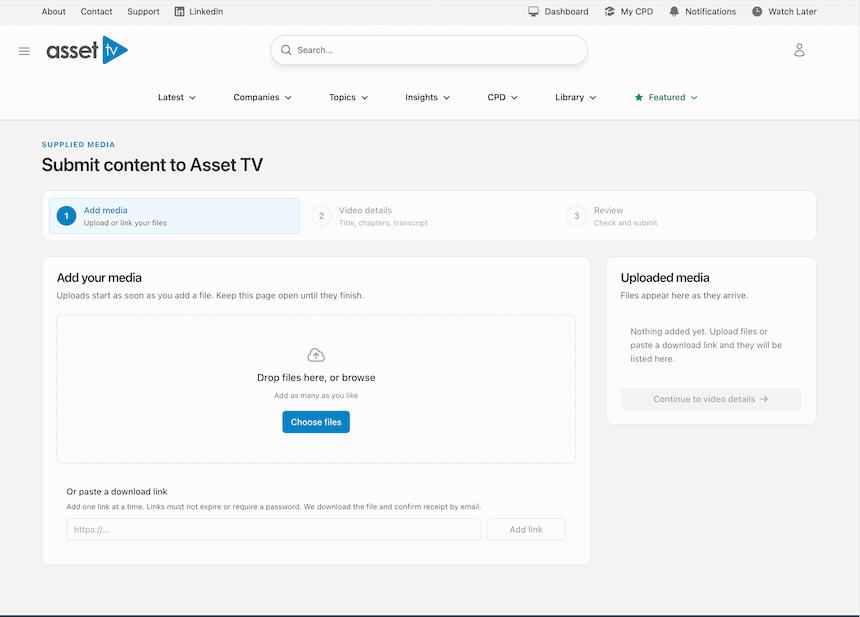
Step 3. Add your video(s) to the upload box; you can either drag a video from your computer, or browse for the video file. The upload status of each file will be shown on the right hand side panel.
Alternatively if the file exists on a publicly available URL the link can be entered in the box below the file upload.
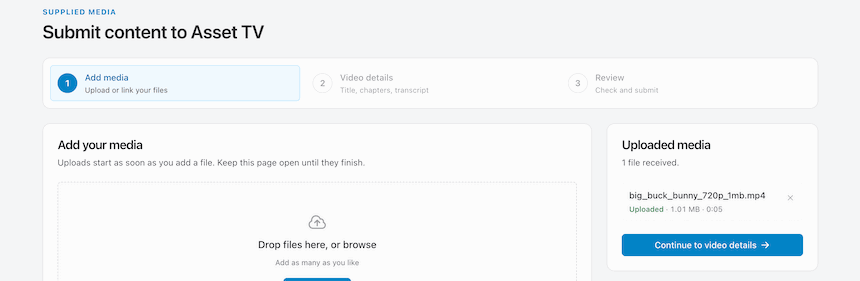
Step 4. Once you've added your video(s) and all uploads have finished, click Continue to video details.
Step 5. For you each video you've uploaded you'll need to complete (or check) the following:
- Video title and description,
- Speakers - use the search field to find previous speakers. If the person's name is not found in our system, an option will be shown to provide a name, job title, company and a profile photo for a new speaker,
- Thumbnail - the still image used to promote the video across the site,
- Topics - select all topics from the search field that apply,
- Transcript - upload your own VTT or TXT file or let us create one for you,
- Chapters (optional) - timecoded markers for the key points in the conversation,
- Supporting material (optional),
You can navigate between uploads using the links in the right hand panel. All form data will be saved when navigating between videos.
When you are happy all information has been entered for each video click Review and submit.
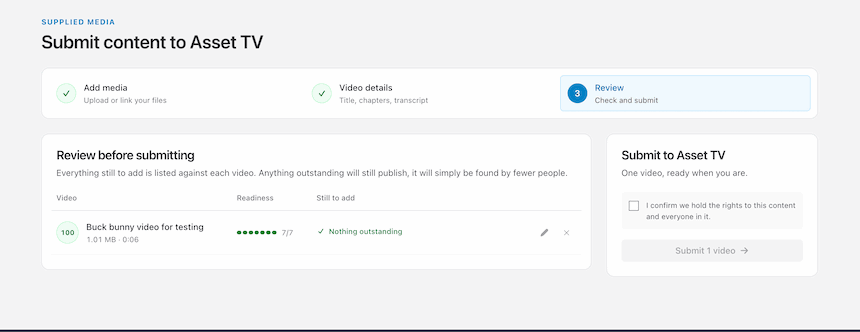
Step 6. For each video uploaded you will see a summary of the information you provided, this is the final chance to make changes before it is sent through to our team.
Either click the pencil icons to make further edits to your media, or check the box to confirm that you hold the rights to the content and click Submit videos to complete the upload.
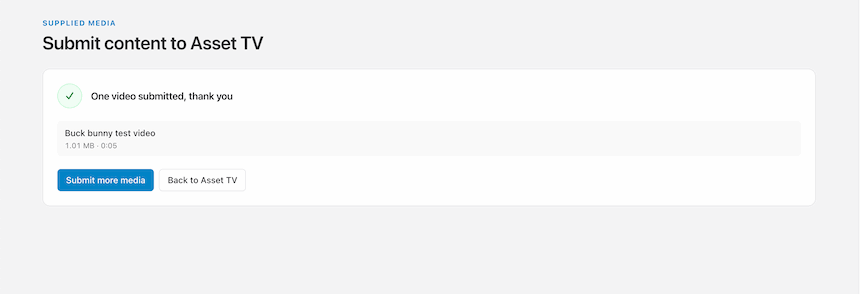
Step 7. Once the form is submitted you will see a confirmation message. Your videos will have been uploaded and sent to us.